
What is your customer experience with Zookaware?
Customer Reviews
2 totalZookaware provides a convenient approach to maintaining a safer and cleaner digital environment
Zookaware is a useful option for users looking for straightforward security and privacy tools. The software is designed with everyday users in mind, offering features that can help improve computer protection and system performance. I found the interface relatively easy to understand, and the overall experience was simple without feeling overly complicated. Zookaware can be worth considering for people who want an additional layer of security while managing their computer. As with any security software, it is a good idea to review the available features, system requirements, pricing, and compatibility before making a decision.
Login to add a comment
I would look for alternative software that offers better performance
I had a disappointing experience with Zookaware. The software felt outdated, and the interface was confusing, making even simple tasks more difficult than they should be. Performance was inconsistent, with frequent slowdowns and occasional crashes that interrupted my workflow. I also found the customer support to be slow in responding, and the solutions provided did not fully resolve my issues. While Zookaware may work for some users, it did not meet my expectations in terms of reliability, ease of use, or overall value. Based on my experience, I would look for alternative software that offers better performance, a more modern interface, and more responsive customer support.
Login to add a comment
About Zookaware
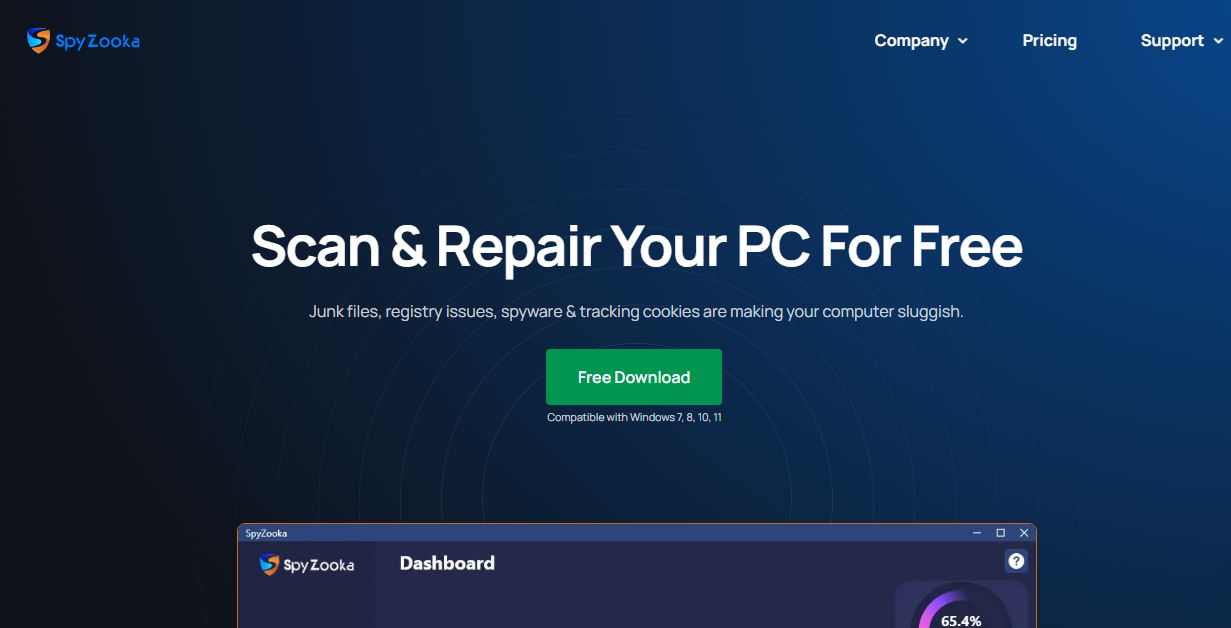
Zookaware is a software company that develops PC optimization, system maintenance, and cybersecurity tools designed to improve the performance, security, and reliability of Windows computers. Founded in 2004, the company offers software solutions that help users remove unwanted files, detect spyware, optimize system settings, and maintain overall computer health. Its products are designed for home users and small businesses seeking easy-to-use tools for routine PC maintenance. The company's product lineup includes utilities for system cleanup, registry optimization, startup management, privacy protection, software updates, and spyware detection. One of its best-known products is SpyZooka, a Windows optimization tool that combines malware scanning, junk file removal, browser cleanup, and performance optimization within a single application. The software is designed to help users improve system speed, reduce clutter, and enhance online privacy through automated maintenance features. Zookaware's products include features such as scheduled system scans, real-time monitoring, browser privacy management, startup optimization, secure file deletion, and software update management. These tools are intended to simplify routine computer maintenance while helping users identify performance issues and remove potentially unwanted software. The company's solutions are compatible with multiple versions of the Windows operating system and are designed for users with varying levels of technical expertise. In addition to software products, Zookaware provides customer support resources, product documentation, troubleshooting guides, and technical assistance for installation, licensing, and software-related inquiries. Users can access support materials through the company's official website and customer service channels. Today, Zookaware continues to develop PC optimization and security software focused on improving computer performance, protecting user privacy,
Address
ZookaWare LLC 611 E 12th Ave Suite 205 Anchorage, Alaska 99501 United States
More in Technology
View all →




Frequently Asked Questions
Common questions about Zookaware
Zookaware Customer Service is available primarily through digital channels since the company does not publicly list a phone number. The fastest options include the live chat icon available on the official SpyZooka website (spyzooka.com) and the Support Center at support.spyzooka.com. You can also email Zookaware Customer Support at support@spyzooka.com. Support availability depends on your subscription status—SpyZooka Pro users receive priority daily support. For installation, licensing, or technical issues on Windows 7, 8, 10, or 11, start with the self-help resources in the Support Center before contacting support. Responses are typically provided daily via email or chat.
Zookaware does not publish a public Zookaware Customer Service Phone Number or Zookaware Support Number. To avoid scams, always access support directly through the official website. Instead, use the live chat on spyzooka.com or email support@spyzooka.com. Contact Zookaware Customer Service via these official channels for help with activation, billing, or troubleshooting. Support options may vary based on your license type and subscription plan. Pro subscribers get priority assistance. Check the Support Center first for quick resolutions to common Windows-related issues.
Visit the official SpyZooka website (spyzooka.com) and click the Free Download button. The installer is compatible with Windows 7, 8, 10, and 11 (32-bit and 64-bit systems). Run the downloaded file and follow the on-screen prompts. During installation, ensure you have administrator rights. The process is straightforward for most Windows users. After installation, the software offers a free scan to detect junk files, registry issues, and more. For any installation problems, refer to the Support Center or Contact Zookaware Customer Service via live chat or email. Support depends on your operating system version.
After purchasing SpyZooka Pro, your activation code is emailed to the purchase address. Open the software, go to the activation or options section, and enter the code. If you need to retrieve it, visit spyzooka.com/activation-code and enter your purchase email. Activation enables full features like malware/spyware removal and advanced optimization. Activation may vary by license type (1, 5, or 10 PCs). For issues, Contact Zookaware Customer Service through live chat or support@spyzooka.com. Windows users should ensure a stable internet connection during activation.
First, double-check the key for typos and ensure you're using the correct email-associated code. Verify your internet connection, as activation requires online verification. Try restarting the software or your PC. If the issue persists, retrieve your code again from the official activation page or Contact Zookaware Customer Service via live chat or email. Support availability depends on your subscription status. Provide details like your Windows version and error messages for faster help from Zookaware Customer Support.
SpyZooka Pro users receive automatic updates for features and spyware definitions. Open the software, go to Options or the update section, and check for available updates. Free version users get monthly updates. Ensure your Windows system is up to date for best compatibility. Regular updates improve malware detection, performance optimization, and security. If updates fail, use the Support Center guides or Contact Zookaware Customer Service for troubleshooting specific to your license and OS.
Use the built-in uninstaller in Windows Settings > Apps, or run the official uninstall process from the SpyZooka Support Center. This ensures complete removal of residual files and registry entries. The software includes a Real Time Leftover File Monitor for thorough cleanup. After uninstalling, restart your PC. For detailed steps tailored to your Windows version, visit the Support Center or Contact Zookaware Customer Service. Support options vary by subscription status.
Run a full scan in Safe Mode for better detection. Ensure you have the latest version with daily spyware updates (Pro feature). SpyZooka complements your antivirus by targeting junk, trackers, and spyware. Update definitions and try the Browser Optimizer. If issues continue, check compatibility with your Windows version and Contact Zookaware Customer Support. Provide scan logs for assistance. Support depends on your license type.
SpyZooka Pro includes a Scheduler for automating scans, updates, registry tuneups, and more. Go to Options > Scheduler, set your preferred time and frequency (e.g., weekly), and enable it. It works even if the PC was off at the scheduled time. This is ideal for Windows users wanting hands-free PC optimization. Free version users have limited scheduling. For setup help, refer to the Support Center or Contact Zookaware Customer Service.
SpyZooka Pro subscriptions renew automatically annually. To manage, open the software > Options > Subscription > Manage Subscription, or use live chat. To cancel, contact support before the renewal date. A 60-day money-back guarantee applies for refunds. Contact Zookaware Customer Service via email or chat for billing issues. Options depend on your plan (1-10 PCs).
Yes, uninstall SpyZooka from the old Windows PC first, then install and activate it on the new one using the same code. Licenses cover 1, 5, or 10 computers depending on the plan. Deactivation happens automatically upon uninstall. For multi-PC management or issues, Contact Zookaware Customer Service. Support varies by subscription status.
For billing or subscription queries, use the live chat on the website or email support@spyzooka.com. Log into your account or use the Manage Subscription option in the software. Provide your order details for quick resolution. Zookaware Customer Support handles refunds within the 60-day guarantee promptly. Response times depend on inquiry volume and your plan.
Yes, Zookaware Customer Support assists with installation issues on supported Windows versions. Start with the Support Center guides, then use live chat or email. Pro users receive priority help. Support depends on your license and OS. Common fixes include running as administrator and checking system requirements.
Visit the Support Center and use the Report a Bug section, or Contact Zookaware Customer Service via live chat or support@spyzooka.com. Include screenshots, Windows version, and steps to reproduce. Detailed reports help the team resolve issues faster. Technical support varies by subscription.
Rarely an issue, but close other programs during scans or check for conflicts with antivirus. Update to the latest version and run optimization tools like registry tuneup. Ensure your Windows system meets requirements. If problems persist, Contact Zookaware Customer Support with details. Performance impact varies by hardware and license features.