Submitting a complaint is just the beginning. Once your complaint is live on RaiseAComplaint.com, what happens next depends largely on how actively you monitor it. Whether you are dealing with a billing dispute, a service failure, or an unresolved customer service issue, knowing how to track complaints on RaiseAComplaint gives you the visibility and control to stay informed at every stage of the process.
Why Complaint Tracking Matters
Filing a complaint creates a public record. But that record is only as useful as your ability to stay on top of it. Here is why active complaint management makes a real difference:
- Staying informed: When a business responds or a status changes, you need to know about it promptly.
- Monitoring progress: Complaint tracking lets you see whether your complaint is moving through the review process or sitting idle.
- Keeping records organized: A centralized complaint history helps you reference past details without digging through old emails or notes.
- Responding to business updates: If a company posts a public response, your timely, professional reply can carry real weight.
- Maintaining accurate documentation: Up-to-date complaint records serve as evidence if a dispute escalates beyond the platform.
Complaint management is not a passive activity. Consumers who engage actively with their complaints tend to get better outcomes and more meaningful responses.
Understanding the RaiseAComplaint Complaint Dashboard
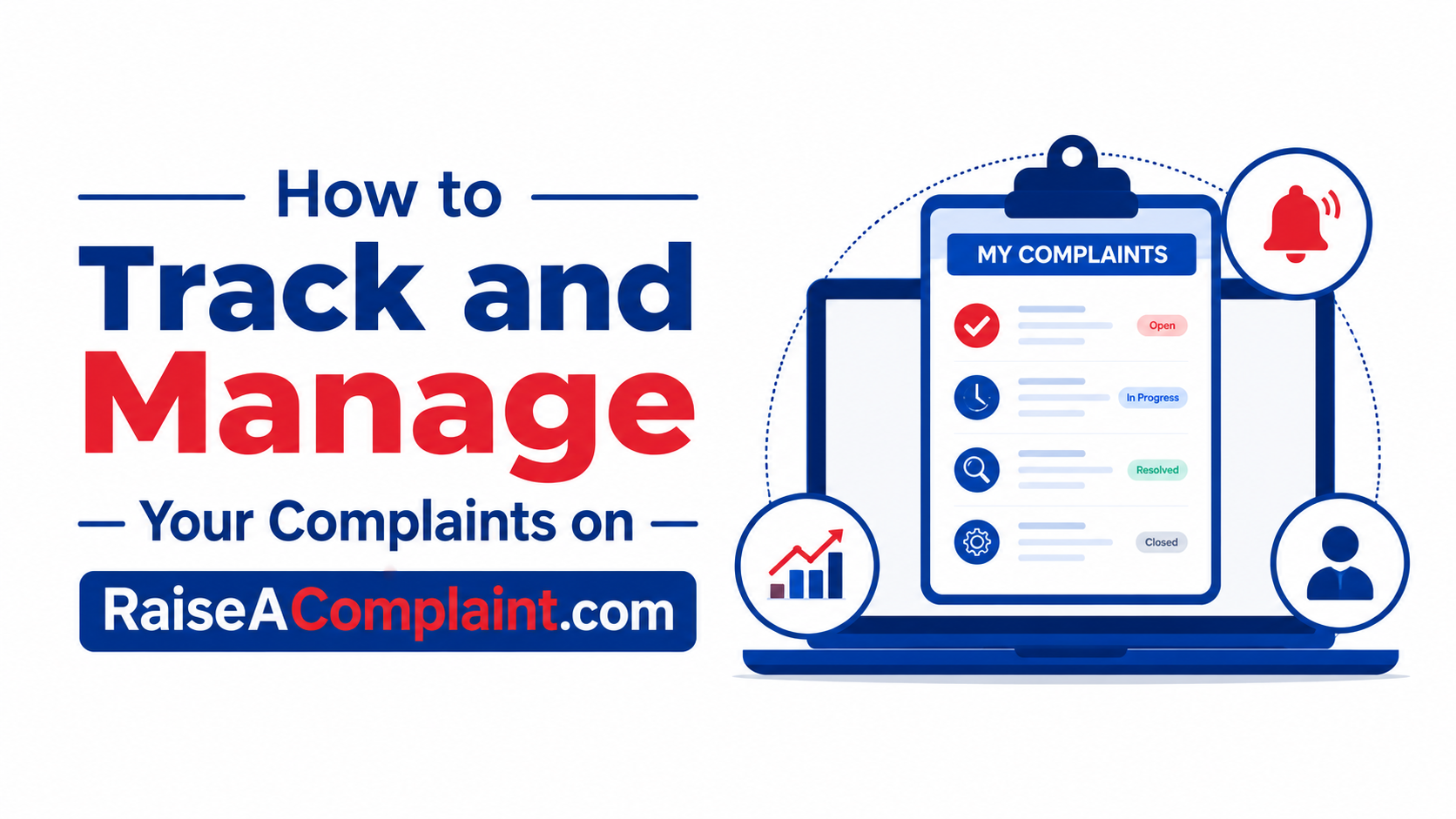
Your complaint dashboard is the control center for all your activity on RaiseAComplaint.com. Once you are logged in, the dashboard brings together everything you need to manage complaints in one place, including:
- A full list of complaints you have submitted
- The current status of each complaint
- Any responses posted by the business
- Notifications for new activity
- A complete history of updates and edits
Think of the dashboard as your personal complaint management hub. You do not need to search through emails or contact customer support to find out what is happening with a complaint. Everything is right there in your account.
Step 1: Log Into Your RaiseAComplaint Account
Before you can track or manage anything, you need to access your account. Here is how:
- Go to RaiseAComplaint.com and click the Sign In or Login link at the top of the page.
- Enter your registered email address and password.
- If you have forgotten your password, use the password reset option to regain access.
- Once logged in, you will land on your account dashboard or profile page.
Security tip: Use a strong, unique password for your RaiseAComplaint account and avoid logging in from shared or public devices. If the platform supports two-factor authentication, enabling it adds an extra layer of protection for your complaint history.
Step 2: Access Your Complaint History
Your complaint history is a log of every complaint you have submitted on the platform. To access it:
- From your dashboard, look for a section labeled My Complaints, Complaint History, or similar.
- This section displays all your submitted complaints, usually in chronological order.
- Use any available search or filter options to find a specific complaint by business name, date, or keyword.
Reviewing your complaint history regularly helps you stay on top of multiple complaints at once and ensures you never lose track of an issue you have already reported. For more context on what happens after you submit, see our article on What Happens After You Submit a Complaint on RaiseAComplaint.com.
Step 3: Check Your Complaint Status
Each complaint on RaiseAComplaint.com goes through different stages. Understanding what each status means helps you know what to expect and when to take action.
Common complaint statuses you may see include:
- Submitted: Your complaint has been received and is waiting for revie
- Under Review: The platform is reviewing your complaint for accuracy and compliance with community guidelines.
- Published: Your complaint is live and visible to the public, including the business named.
- Updated: You or another party has added new information to the complaint.
- Business Responded: The business has posted a public response to your complaint.
Actual status labels may vary depending on platform updates. If you are unsure what a status means, check the platform's help section or FAQ for the most current definitions.
Step 4: Monitor Notifications and Updates
Notifications are one of the most important features for staying engaged with your complaint. When something changes, such as a business response, a status update, or a platform review decision, you should be notified automatically.
Here is what to watch for in your notifications:
- New activity alerts when something changes on your complaint
- Business engagement notifications when a company responds or takes action
- Platform updates related to your complaint's status
- Reminders if your complaint requires additional information from you
Make it a habit to check your account notifications whenever you log in. Even if you receive email alerts, reviewing your dashboard directly ensures you do not miss anything. If you are not receiving notifications, check your account settings and make sure your email address is verified.
Step 5: Review Business Responses
One of the most valuable features of a consumer complaint platform is the ability to see how businesses respond publicly. When a business responds to your complaint on RaiseAComplaint.com, their response appears directly below or alongside your original complaint.
Business responses may include:
- An explanation of their policies or processes
- An apology or acknowledgment of the issue
- An offer to resolve the complaint
- A request for you to contact them directly
- A dispute of your claims with their version of events
Best practices when reviewing a response:
- Read the response carefully and objectively before reacting.
- If the business has offered a resolution, consider whether it addresses your original complaint.
- If you respond publicly, keep your reply factual, professional, and focused on the issue.
- Avoid emotional language. A measured response is more credible and more effective.
For more guidance on how to write replies that get results, see our article on How to Write a Complaint That Gets a Response.
Step 6: Update Your Complaint When Necessary
Complaints are not always static. As your situation develops, you may need to add information, correct details, or document an outcome. RaiseAComplaint.com allows you to update a complaint after it has been submitted.
Common reasons to update a complaint include:
- Adding new evidence such as receipts, screenshots, or correspondence
- Providing additional context that was not available at the time of submission
- Documenting a resolution if the business has addressed your concern
- Clarifying details in response to a business reply
- Correcting any factual errors in the original complaint
Keeping your complaint current not only strengthens your case, it also signals to other consumers and to the business that you are actively engaged.
Managing Multiple Complaints Efficiently
If you have filed complaints against more than one business, or multiple complaints about the same company, staying organized is key. Here are some practical tips:
- Use the complaint history filters to sort by business name, date, or status.
- Create a simple external log (a spreadsheet or notes file) that tracks each complaint by case details, dates, and outcomes.
- Set a regular schedule to check in on open complaints, such as every few days or once a week.
- Prioritize complaints that have received a business response or that have upcoming deadlines.
- Archive or close complaints that have been fully resolved so your dashboard stays focused on active cases.
Treating complaint management like a project with clear priorities and timelines helps you stay on top of multiple issues without losing track of any individual case.
Best Practices for Effective Complaint Management
Beyond tracking statuses and reading responses, here are the habits that lead to the best outcomes:
- Keep your evidence organized: Before you even file, gather receipts, emails, chat logs, and screenshots. Store them in a dedicated folder so you can upload them when needed.
- Check updates regularly: A complaint left unattended can stall. Log in at least once a week to see if anything has changed.
- Respond professionally: Whether you are replying to a business or updating your complaint, keep your language factual and respectful. Emotional or aggressive responses can undermine your credibility.
- Maintain factual accuracy: Only include details you can verify. Inaccurate information can weaken your complaint and damage your standing on the platform.
- Document outcomes: If your issue is resolved, update your complaint to reflect that. This is useful both as a personal record and as information for other consumers researching the same business.
Common Complaint Tracking Challenges and How to Handle Them
Even with a well-designed platform, consumers sometimes run into obstacles. Here is how to address the most common ones:
Missing Notifications
Check your spam or junk folder for platform emails. Log into your account settings and confirm that your email address is verified and that notifications are turned on.
Forgotten Login Credentials
Use the password reset link on the login page. If you have trouble accessing the email associated with your account, contact platform support directly.
Unresponsive Businesses
Not all businesses respond to consumer complaints. If a company does not engage, your published complaint still serves as a public record. You may also want to consider escalating through additional channels such as the Better Business Bureau, your state attorney general, or relevant regulatory agencies.
Incomplete Records
If you realize after submission that your complaint is missing key details, use the update function to add them. It is always better to add information through the platform than to leave an incomplete record standing.
Benefits of Managing Complaints Through RaiseAComplaint.com
RaiseAComplaint.com is built around the idea that consumers deserve a voice and businesses should be publicly accountable. Managing your complaints through the platform offers several concrete advantages:
- Transparency: Every update, response, and status change is logged and visible, creating a clear timeline of your complaint.
- Organized documentation: Instead of scattered emails and notes, all your complaint activity lives in one place.
- Consumer awareness: Your published complaint helps other consumers make informed decisions about the businesses they deal with.
- Public accountability: Businesses know their responses are public, which often motivates more thoughtful and genuine engagement.
- Easy access to history: Whether you need to reference a past complaint for a legal matter or simply want to track your own consumer experiences, your history is always accessible.
How RaiseAComplaint.com Helps Consumers Stay Informed
RaiseAComplaint.com was designed to give everyday consumers the tools they need to document problems, hold businesses accountable, and share experiences publicly. The platform makes it easy to:
- Monitor complaint activity as it happens
- Track business engagement in real time
- Maintain a permanent record of your complaint and any responses
- Share your experience with other consumers researching the same business
- Promote accountability through transparent, public complaint management
Whether you are dealing with an unresponsive retailer, a billing error that keeps getting ignored, or a service that simply did not deliver what was promised, RaiseAComplaint.com gives you a structured, credible way to document your experience and pursue a resolution. For insight into what businesses can learn from this process, see our article on Why Businesses Should Respond to Consumer Complaints.
Wrapping It Up!
Filing a complaint is an important first step, but it is the follow-through that determines how useful that complaint really is. By taking the time to track complaints on RaiseAComplaint, monitor business responses, and keep your records current, you put yourself in the strongest possible position to pursue a resolution, document your experience, and contribute to a more accountable consumer landscape.
Log into your RaiseAComplaint account regularly, stay engaged with your complaint history, and remember that the platform's tools are there to work for you. Whether you have one complaint or many, consistent complaint management is what turns a submission into a meaningful consumer record. What Happens After You Submit a Complaint on RaiseAComplaint.com
Ready to get started? Sign into your RaiseAComplaint.com account today and take control of your complaint journey.
Frequently Asked Questions
How do I track my complaint on RaiseAComplaint.com?
Log into your account at RaiseAComplaint.com and navigate to your complaint dashboard or My Complaints section. From there, you can view the status of each complaint you have submitted, check for new notifications, read any business responses, and update your complaint with additional information as needed. Complaint tracking is available to all registered users at no charge.
Where can I see complaint updates?
All updates to your complaints are visible in your account dashboard under your complaint history. When a business responds, when a status changes, or when new activity occurs, the update will appear directly on your complaint page. You may also receive email notifications depending on your account settings and how they are configured.
Can I update a complaint after submission?
Yes. RaiseAComplaint.com allows users to update their complaints after they have been submitted. You can add new evidence, upload screenshots, provide additional context, correct inaccurate details, or document a resolution. Keeping your complaint up to date strengthens your record and ensures the information is accurate for other consumers and for the business involved.
How do I know if a business has responded to my complaint?
When a business posts a response to your complaint, you should receive a notification through the platform. You can also check the status of your complaint directly in your dashboard. A status label such as Business Responded indicates that the company has engaged with your complaint publicly. Always review responses carefully and consider replying professionally if appropriate.
Can I manage multiple complaints from the same account?
Yes. Your RaiseAComplaint account supports multiple complaints from a single login. Your complaint history displays all submitted complaints, and you can filter or search by business name, date, or complaint status. If you regularly file complaints, keeping an external log of key dates and outcomes can help you stay organized across multiple cases.
What happens if I miss a notification?
Missing a notification does not affect your complaint. All activity is recorded in your account, so you can always log in and review updates at any time. If you are consistently missing notifications, check your spam folder, verify that your account email is current, and review your notification settings in your account profile to make sure alerts are enabled.
How often should I check my complaint status?
There is no fixed rule, but checking your complaint status at least once or twice a week is a good practice, especially in the first few weeks after submission when businesses are most likely to respond. For high-priority complaints or time-sensitive disputes, checking every day or two helps you respond promptly to any new developments.
Is complaint tracking free on RaiseAComplaint.com?
Yes. Accessing your complaint dashboard, viewing complaint statuses, reading business responses, and monitoring notifications are all free features available to all registered users. There is no subscription or premium plan required to track and manage your complaints on the platform.
What complaint statuses might I see on my dashboard?
Common status labels include Submitted, Under Review, Published, Updated, and Business Responded. These statuses give you a real-time view of where each complaint stands in the process. Exact labels may vary depending on platform updates, so consult the help section if you encounter an unfamiliar status and want clarification.
Can I delete a complaint I have already submitted?
Policies on deleting or removing complaints vary by platform. Log into your account and look for options within your individual complaint page. If deletion is not available directly, contact RaiseAComplaint.com support for assistance. In some cases, complaints may be updated or marked as resolved rather than permanently removed.